Versioning and Comparison Feature Guide
Last updated: March 12, 2026
Background
The Versioning and Comparison feature allows you to compare two versions of the same document to quickly find and summarize all important changes between them. This powerful tool helps you save hours on every contract review by eliminating the need for manual line-by-line reading to spot changes. The feature provides instant clarity on what has changed between document versions, categorizing differences into four intuitive buckets: Addition, Deletion, Modification, and Location changes. This purpose-built solution is designed specifically for construction workflows like redline reviews, subcontract updates, and negotiation tracking, helping you focus time on substantive analysis and risk assessment rather than mechanical review.
Things to Consider
The feature is designed specifically for versions of the same document, not for comparing different documents entirely
Documents should ideally be less than 30% different for optimal accuracy - over 30% difference may result in less detailed summaries
Documents with multiple columns do not work
You can only upload a single comparison per crunch at this time, not multiple versions
There is currently no export or download mechanism for the summary - it exists only in-app
Chat functionality works with only one document at a time (the currently visible one)
You cannot add new checklists to the second version of the document
The feature cannot support prime contracts compared to addendums - both versions must be the same root document
Digitally stapled documents must contain the same documents in the same order for proper comparison
If markups are light colored/low contrast (yellow, light blue), the OCR can have trouble reading those items and can miss things.
Currently does not work with Playbooks solution type and is therefore not available from within Procore
Once a V2 is added to a Crunch, it cannot be removed. If the version was added in error, the file will need to be re-crunched.
Notes added during a version comparison are visible to anyone with access to the document, including users the document has been shared with.
Steps
Open an existing crunch for version 1 of the document
Access Version Comparison by clicking on the "Version Comparisons" tab in the home row of your crunch
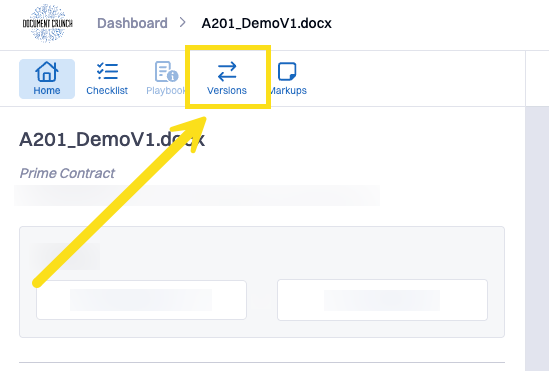
Upload the new version by clicking Add new version and selecting your document file (or drag and drop)
Note: You will receive an email notification once processing is complete
Review the comparison summary by clicking on the comparison summary tile that appears after processing
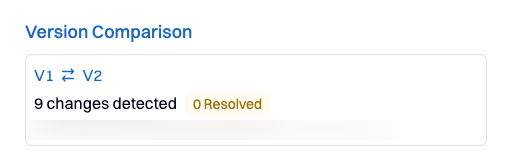
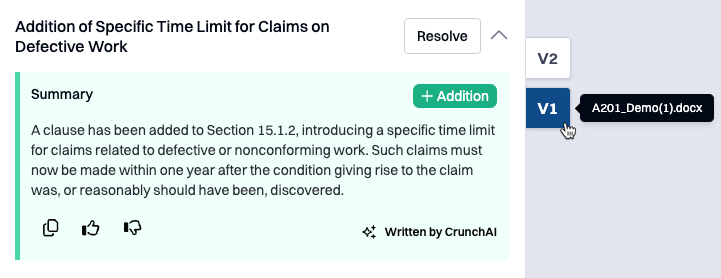
Open/Close each item to review the summary of changes that can fall into one of the following color-coded categories:
Addition: Language added to the document that alters section impact
Deletion: Language removed that alters section impact
Modification: Sections with both additions and deletions
Location: Clauses or sections that were moved and the move changed the impact
Note: If there are no differences between the documents, the system will display a message indicating there are no changes found
Toggle between versions using the V1 and V2 buttons to view changes in context within each document version
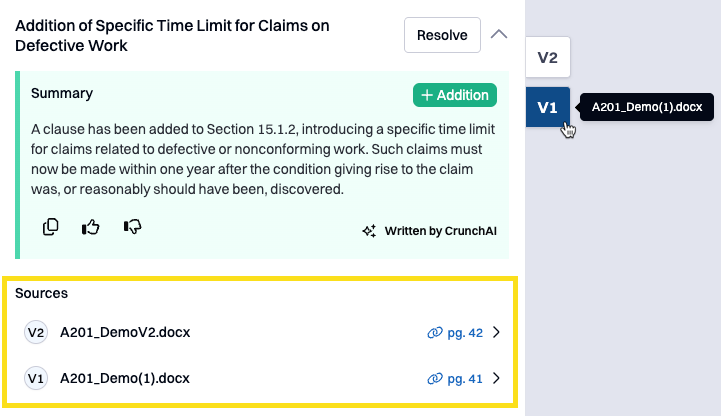
Use citations to view relevant sources in both document versions by clicking on the citation links
Add notes to any summary item for internal tracking and collaboration
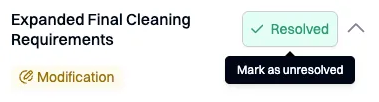
Resolve items by marking changes as Resolved to track which differences have been reviewed, mitigated, or accepted
Provide feedback on AI summary quality using the thumbs-up or thumbs-down button below each summary