How to Upload Documents
Last updated: April 23, 2026
Background
Document Crunch has transformed the document upload experience by replacing technical "Solution Types" with intuitive "Document Types" that match how construction professionals naturally organize their work. This streamlined approach delivers several key benefits to help you work more efficiently:
Simplified Document Organization: Instead of choosing from confusing technical categories, you'll now select familiar document types like Prime Contract, Subcontract, Specifications, or Other—terms that align with how you already think about your construction documents.
Complete Setup in One Step: The new upload flow allows you to configure everything during the upload process, including document destination, applying checklists, adding playbooks, and assigning team members. This means your document is ready to work with as soon as processing completes, eliminating the need to return later to add checklists or make assignments.
Increased Efficiency: By guiding you through a clear, step-by-step workflow in a convenient modal window, the new system helps you get documents processed faster while ensuring you don't miss important setup steps. You can even assign checklists and playbooks to team members during upload, so everyone is notified and ready to start work immediately.
Things to Consider
Single Document Upload: The current version supports uploading one document at a time. If you need to upload multiple documents, you'll need to repeat the process for each file.
Supported File Types: Only .pdf, .doc, and .docx files are accepted, with a maximum of 3,000 pages and 500MB file size.
Steps
1. Start the Upload Process
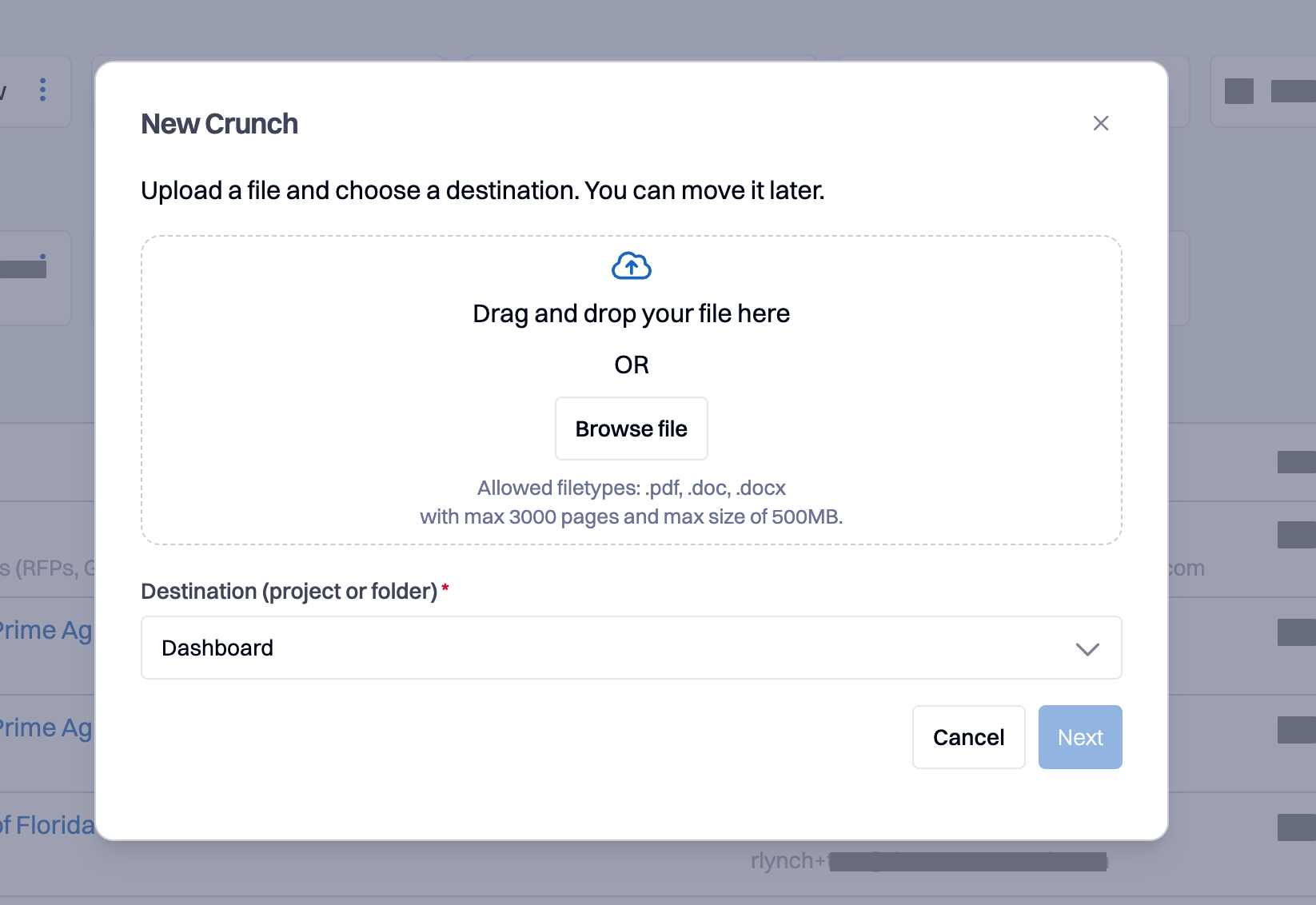
Click the +New button in your dashboard and select New Crunch from the dropdown menu. A window will appear, keeping you on your current page while you complete the upload.
2. Upload Your Document
In the upload window, you can either drag and drop your document into the designated area or click browse files to select a document from your computer. The Destination drop down box will display your current location (dashboard, folder, or project) where the document will be saved, or you can select a different location at this stage.
3. Select Your Document Type
Choose the document type that best matches what you're uploading:
Prime Contract: For main contracts, general agreements, and GMP or design-build contracts
Subcontract: For subcontractor agreements and trade contracts
Specifications: For project specifications and technical documents
Other: For all other document types, including RFPs, NDAs, insurance policies, and more
Important: While the document type filters the suggested checklists from our library, you'll always have access to all your custom checklists no matter which document type you choose with the exception of Specifications.
4. Apply Checklists and Playbooks (Optional but Recommended)
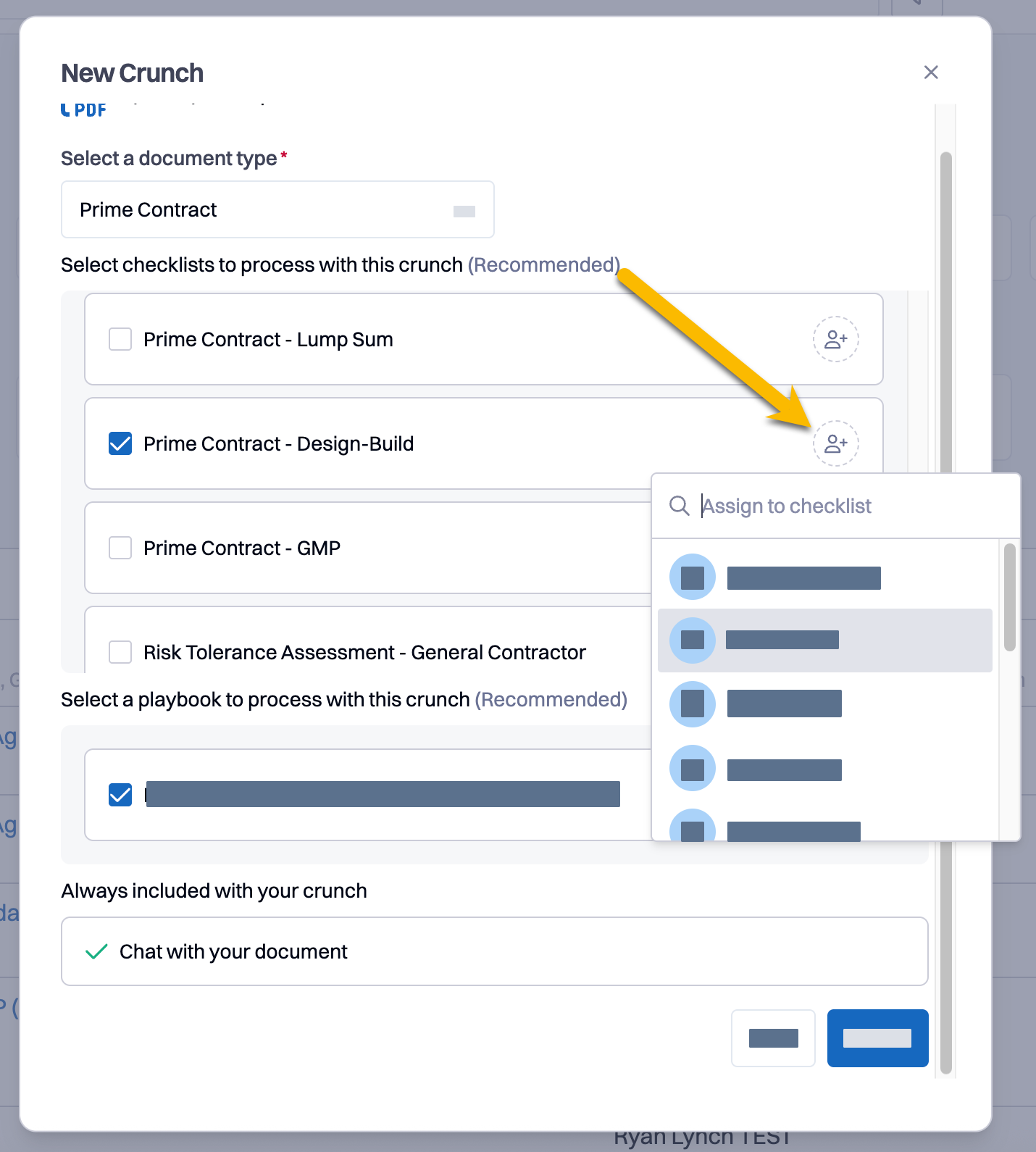
After selecting your document type, you'll see relevant checklists and playbooks available for your selection:
Your custom checklists appear first for easy access
DocumentCrunch library checklists follow, filtered by your selected document type
You can select multiple checklists to apply simultaneously
You can combine one playbook with multiple checklists
The "Chat with my document" feature is always available, even without checklists
Tip: Key provisions are now built directly into checklists, so when you apply a checklist, its associated provisions are automatically included—no extra steps needed.
Note: If you're unsure which checklists to apply, you can skip this step and add them later after the document is processed.
5. Assign Checklists or Playbooks to Team Members (Optional but Recommended)
For each checklist or playbook you've selected, you can assign it to a team member:
Click the assignment icon on the right side of the checklist/playbook name
Select the user you want to assign it to from the dropdown
The assigned user will receive a notification as soon as the document processing is complete
6. Complete the Upload
Once you've configured your document type, checklists, and assignments, click the Crunch button to begin processing.
What happens next:
You'll see a success confirmation message
Your document appears in the dashboard with a "Pending" status
The system processes your document along with all selected checklists and playbooks
You receive an email notification when processing is complete
Assigned team members receive notifications about their assignments
Processing Time: Document processing typically completes within a few minutes, but timing may vary based on document size and complexity.
7. Access Your Processed Document
Once processing is complete, click on the document name in your dashboard to open it. All checklists, playbooks, and assignments you configured during upload will be ready to use immediately.
Need Help? If you have questions about which document type or checklists to use for your specific document, contact your Document Crunch administrator or reach out to our support team at support@documentcrunch.com