How to Add and Manage Users
Last updated: November 5, 2025
Background
Collaboration is a key component of maximizing your experience in Document Crunch. Here is how you can quickly get your teammates added to your instance and start crunching!
Things to Consider
You will need to have Admin level permissions
Depending on internal security systems, invitations can be routed to Spam folders, Promotions folders, Junk folders, etc.
Steps to add users
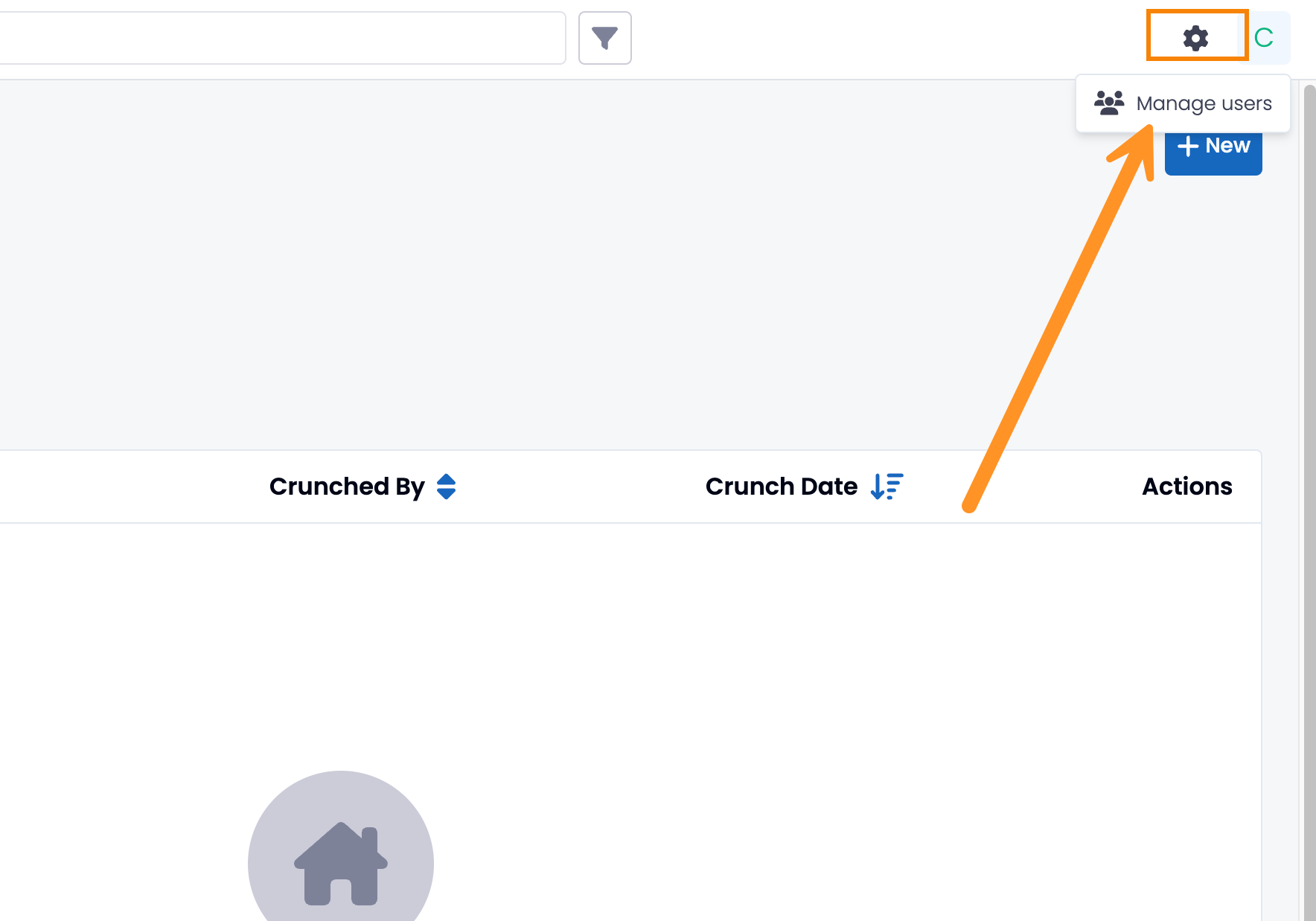
After logging in to your Admin account, click the gear in the top right-hand corner and select Manage Users
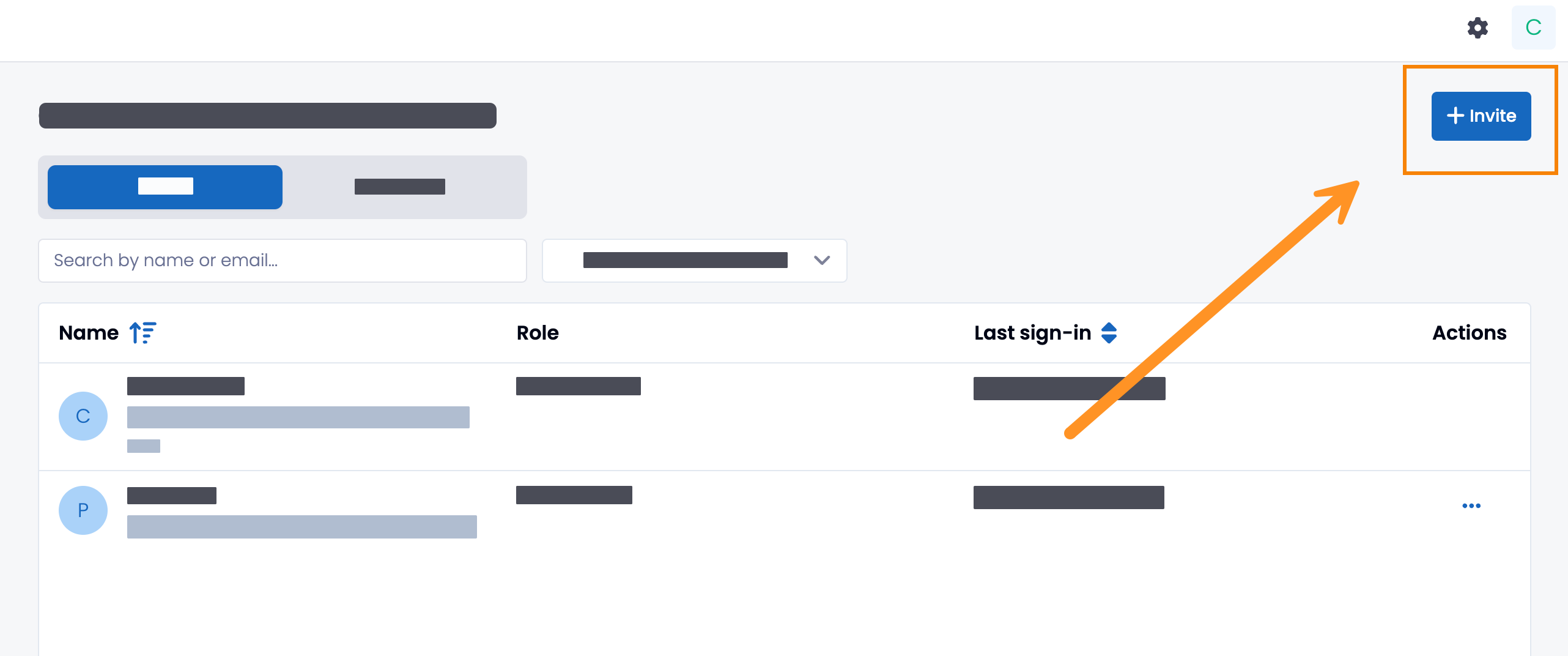
Select the blue +Invite button on the following page
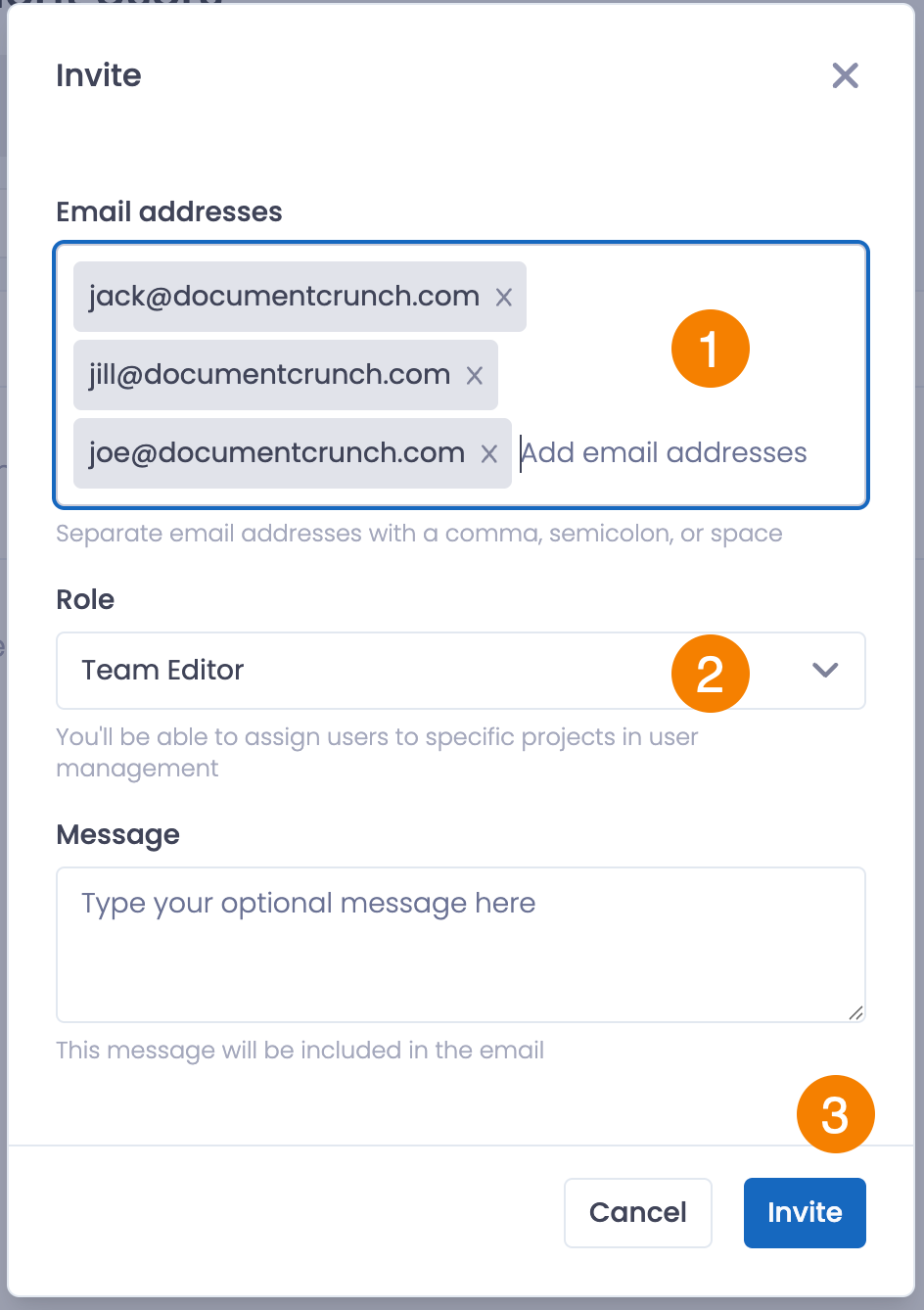
In the pop up window, add the user(s) email who you are wanting to invite, set their permissions, and then click
Optional: you can add a personalized messaged to go along with the invitation email
For questions about Roles, you can visit our Permissions Matrix
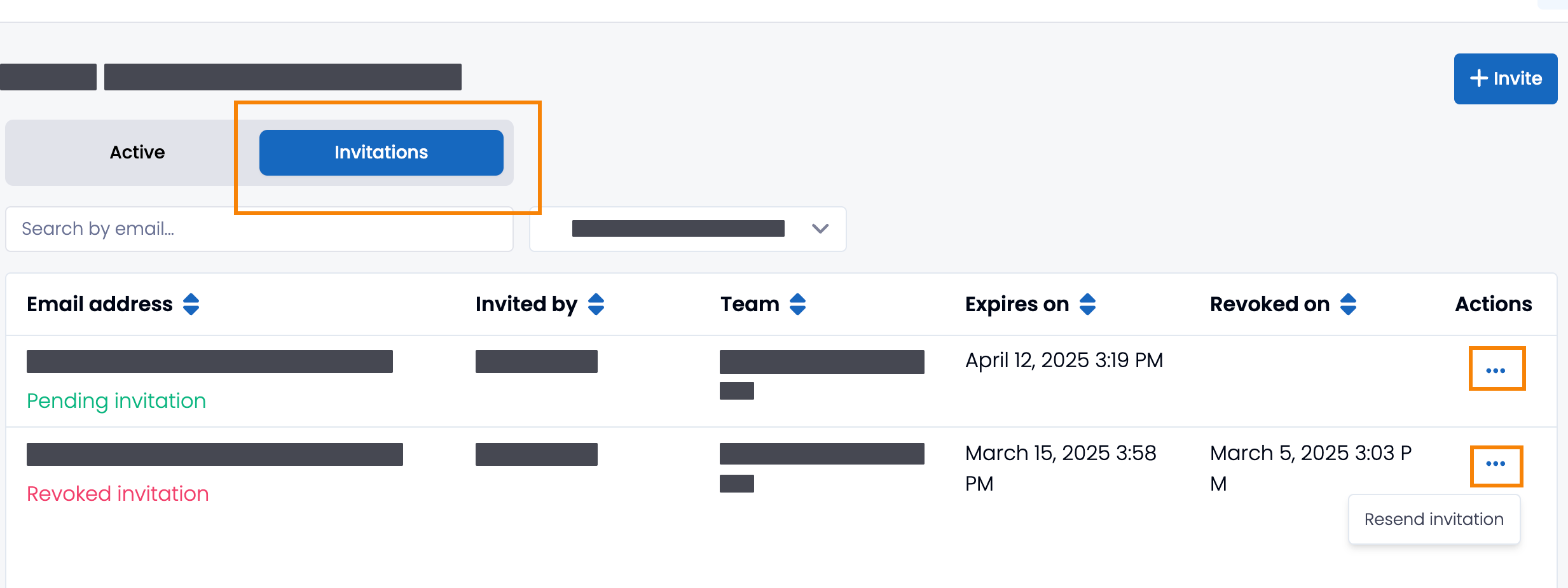
Note: Invitations will expire after 10 days if not accepted and will need to be re-sent for the user to accept after this timeframe
Managing Existing Users
Removing Users can be done by clicking the ellipses to the right of a user's name and selecting Remove from team
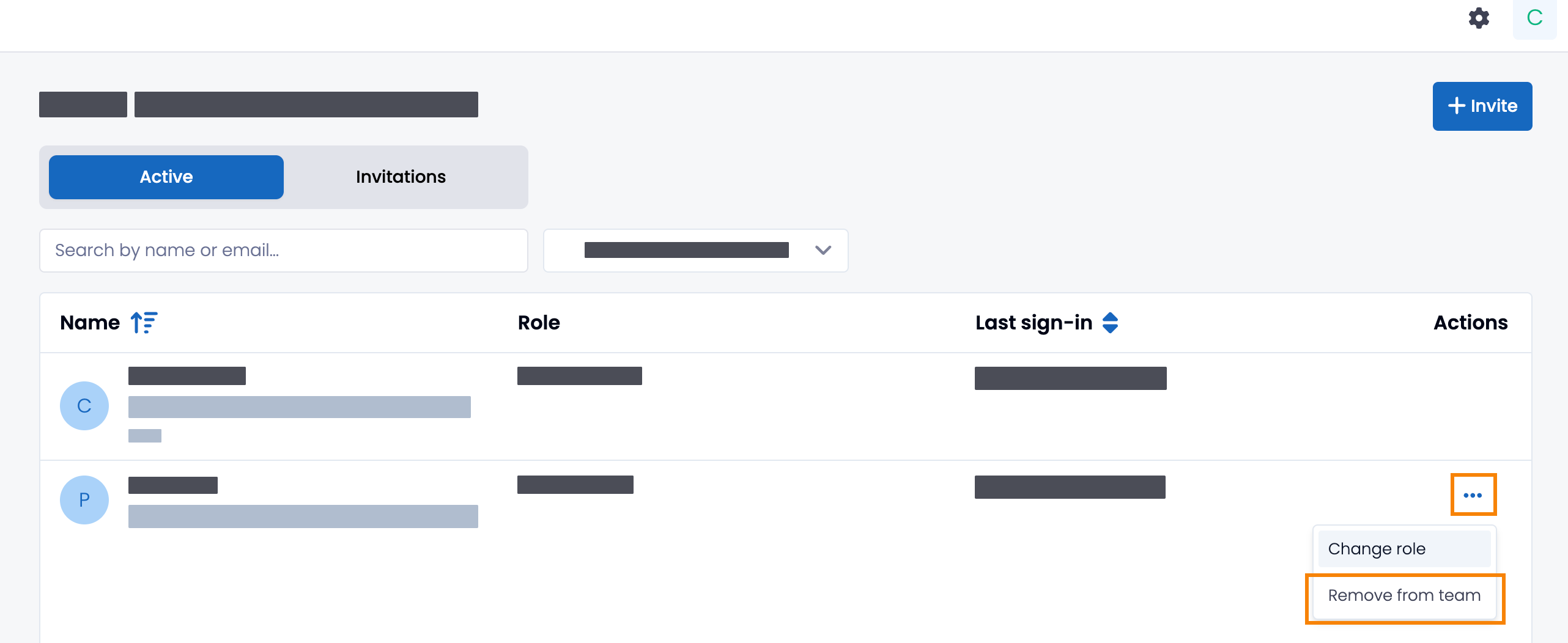
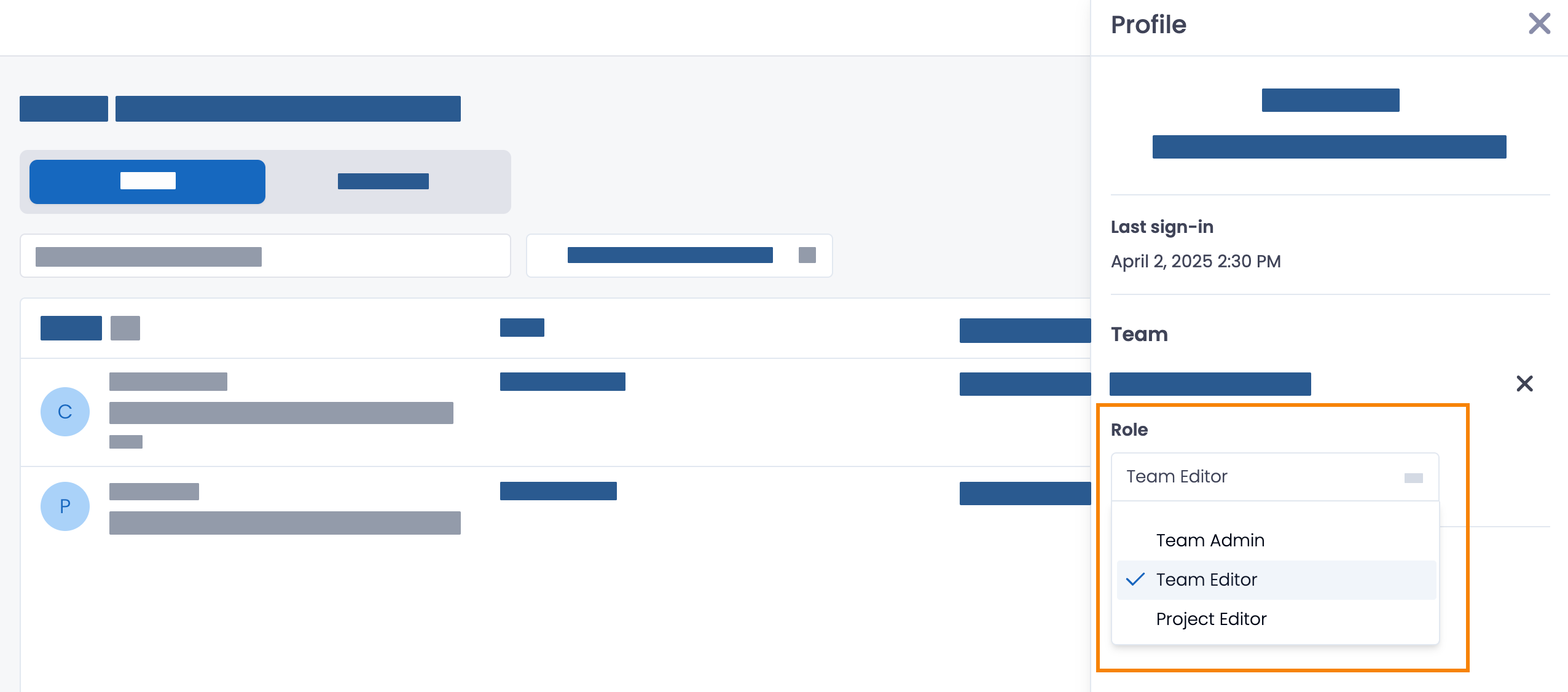
Change a User's Role by clicking on their name OR the ellipses to the far right of their name and select Change Role. In the panel that opens up to the right, select the Role drop down box to select which permissions you would like to apply. Changes will save immediately.
To view pending invitations, click on the Invitations tab in the upper left-hand corner. Under each email, you can see which invitations are pending, expired or revoked.
To revoke an invitation, click on the ellipses to the far right under Actions, and select Revoke invitation
To resend an expired or revoked invitation, click on the ellipses to the far right under Actions, and select Resend invitation