Organizing Crunches with Subfolders
Last updated: January 12, 2026
Background
With unlimited nested folder capabilities, you can now create a hierarchical document structure that mirrors your internal workflows and processes. This means no more scrolling through lengthy lists of documents or struggling to locate files in complex projects. The feature enables you to segment project components clearly, making collaboration more efficient and document retrieval significantly faster.
Things to Consider
All users except 'shared' users can create, rename, and move subfolders
Project Editors have full access to all folders within their authorized projects and can create subfolders within these projects
There are NO subfolder level permissions. If the user share a project with another user, all the folder inside that project are going to be shared too.
Projects cannot contain sub-projects (only folders and subfolders)
There are no limits on the number of subfolders you can create
Steps
Creating a Subfolder
Navigate to and open the folder or project where you want to add a subfolder
Click the +New blue button in the top right corner
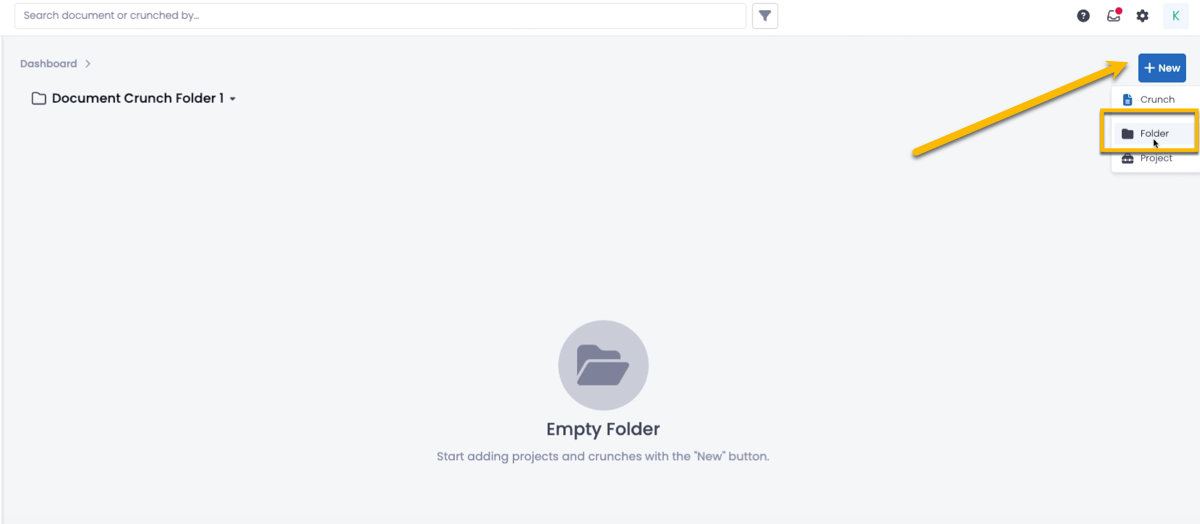
Select Folder from the dropdown menu
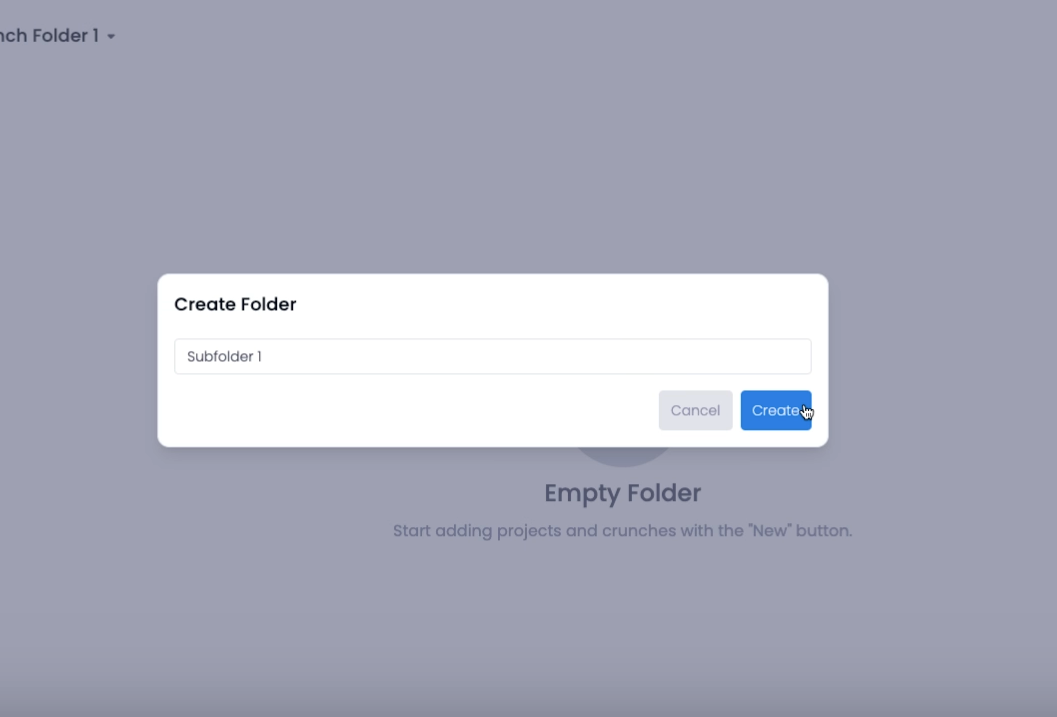
In the Create Folder dialog box, enter your desired folder name in the Enter folder name field
Click Create to confirm or Cancel to leave without saving your changes
Renaming a Subfolder
Locate the subfolder you want to rename
Click the three dots to the right of the folder name
Select Rename Folder from the dropdown menu
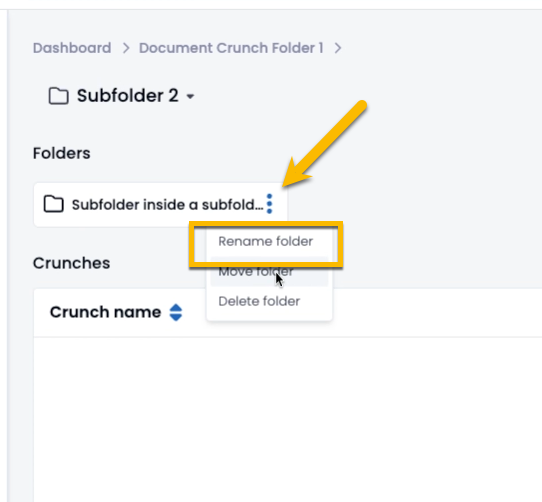
In the 'Rename Folder' dialog, modify the folder name as needed
Click Rename to save changes or Cancel
Moving a Subfolder
Find the subfolder you want to relocate
Click the three dots to the right of the folder name
Select Move Folder from the dropdown menu
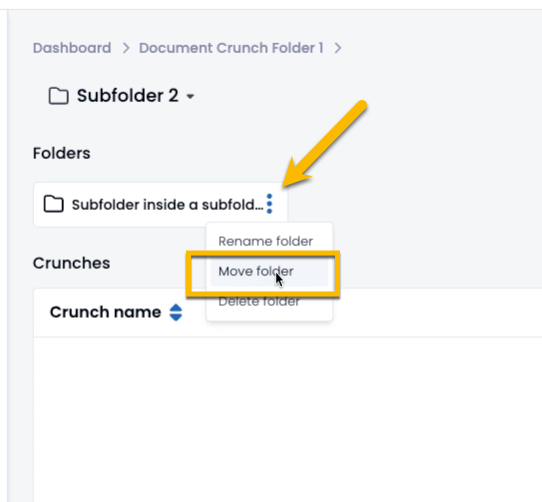
In the 'Move' dialog, choose the destination folder or project where you want to move the subfolder
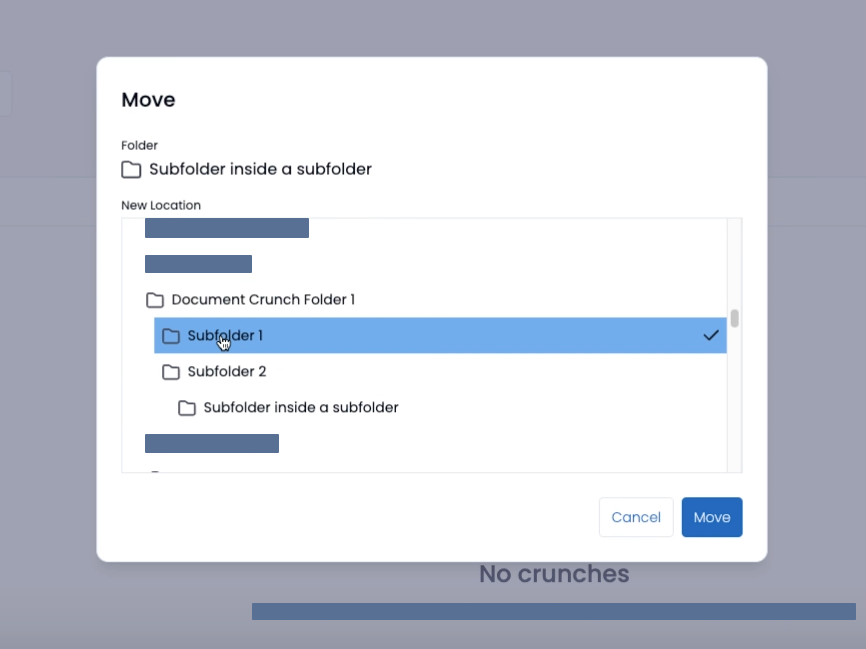
Click Move to complete the transfer or Cancel to abort the operation
Tip: Use the breadcrumb navigation in the upper left hand side to easily track your location within nested folder structures and quickly navigate between different levels of your organization system.
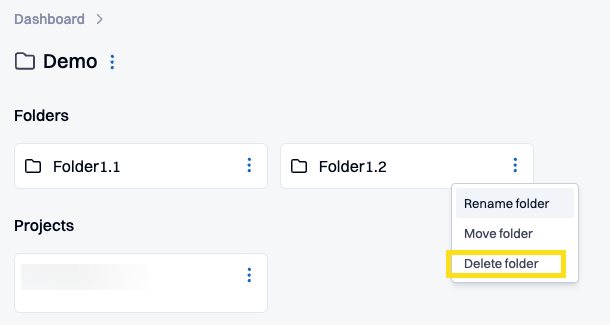
Deleting a Subfolder
Note: The subfolder must be empty in order to delete
Find the subfolder you want to delete
Click the three dots to the right of the folder name
Select Delete Folder from the dropdown menu