Generating Notice Letters with Notice Builder
Last updated: May 30, 2025
Background
The Notice Builder feature transforms how construction project teams handle one of their most critical communication requirements: drafting contractually required notice letters. This new capability within our Procore integration addresses the common "blank page" challenge that prevents project managers from sending timely notifications about situations impacting schedule, costs, or project scope.
Construction projects frequently encounter unexpected events, from weather delays and material shortages to unforeseen site conditions, that require formal notification to stakeholders. However, many project teams struggle with crafting these notices effectively, leading to delayed or incomplete communications that can have serious contractual and financial implications. Notice Builder eliminates this barrier by providing a guided experience that captures all relevant information needed for compliant, professional notice letters.
The feature streamlines your workflow by automatically considering notice provisions within your contract, identifying appropriate stakeholders for notification, and incorporating relevant project information from Procore. This ensures your notices are not only timely but also comprehensive and contractually compliant. By overcoming the communication hesitation that many teams experience, Notice Builder helps protect your project's interests while maintaining professional relationships with all stakeholders.
Things to Consider
Currently available within the Procore integration side panel
All team members with Procore integration access can use the feature
Supported Notice Types: Project delays, Weather events, Unforeseen conditions, Changes in work, Other (for situations not covered by standard categories)
Steps
Creating a Notice Letter
Access Notice Builder within your Procore integration interface and then click +New Notice
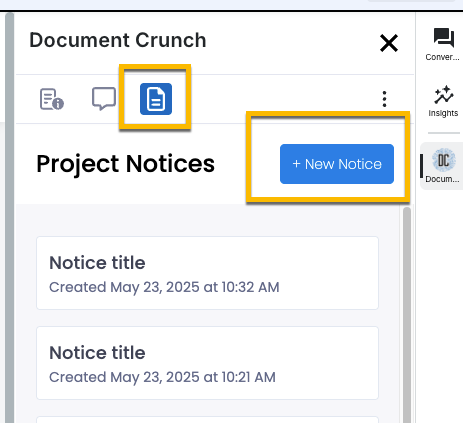
Select the notice type that best describes your situation:
Project delays
Weather events
Unforeseen conditions
Changes in work
Other
Complete the Situation Details section (required):
Describe the specific situation or event that occurred
Select the date when the situation happened
Provide clear, factual details about what transpired
Documenting Potential Impacts
Fill out the Potential Impacts section:
Project scope: Indicate whether there are changes to the overall project scope
Expected delay: Specify the anticipated delay duration (days, weeks, etc.)
Affected milestones: List which project milestones will be impacted
Estimated extra costs: Provide cost estimates for additional expenses incurred
Use the "still investigating" option if impacts are not yet fully determined—this allows for timely notification while indicating that additional details will follow
Defining Next Steps
Complete the Next Steps section:
Mitigating actions: Describe immediate steps being taken to address the situation
Remediation plans: Outline longer-term solutions and recovery strategies
Review the generated notice to ensure all information is accurate and complete
Submit the notice—it will be automatically stored and associated with your project's playbook
Managing Generated Notices
View all notices associated with your project within the Procore integration interface
Track notice history to ensure all qualified events have appropriate documentation
Prepare follow-up notices as situations evolve or when investigations are completed
Tip: Use the "still investigating" field strategically to send timely preliminary notices while you gather complete information, then follow up with detailed notices once your assessment is complete. This approach ensures contractual compliance while allowing time for thorough impact analysis.