Procore Integration Setup Guide
Last updated: June 24, 2026
Background
With Document Crunch's Procore integration — from generating timely notices to delivering daily contract insights straight to the field — you'll stay compliant in every contract and keep your projects running smoothly. Protect yourself from profit loss, avoid future litigation, and up-skill your team by bringing Document Crunch's AI powered Contract Playbooks directly to your in-app experience on Procore.
Things to Consider
You will need to be a company Admin in Procore
Confirm with your Document Crunch Account Manager that the integration has been turned on for your account
You will need to have a crunched Playbook in Document Crunch
Document Crunch operates in the following Procore project tools: Directory, Correspondence, RFI’s, Submittals, Observations, Schedule, Prime Contracts, Budget, Commitments, and Change Events
Steps
Login to Procore and click on the black Apps box in the upper right-hand corner at the company level, then select Marketplace. You will automatically be redirected to Procore’s marketplace web page.

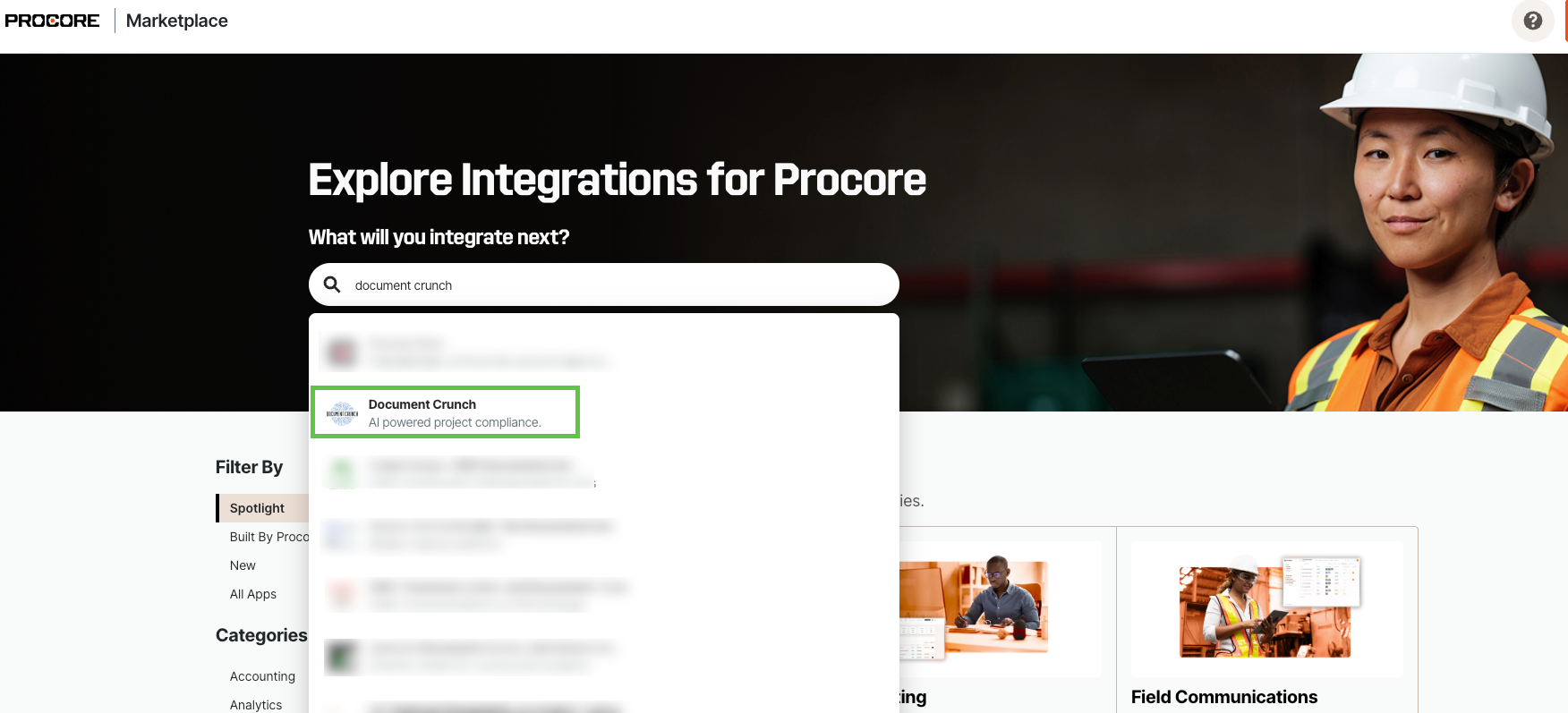
In the search bar at the top, type in Document Crunch and click on the result that appears directly below.
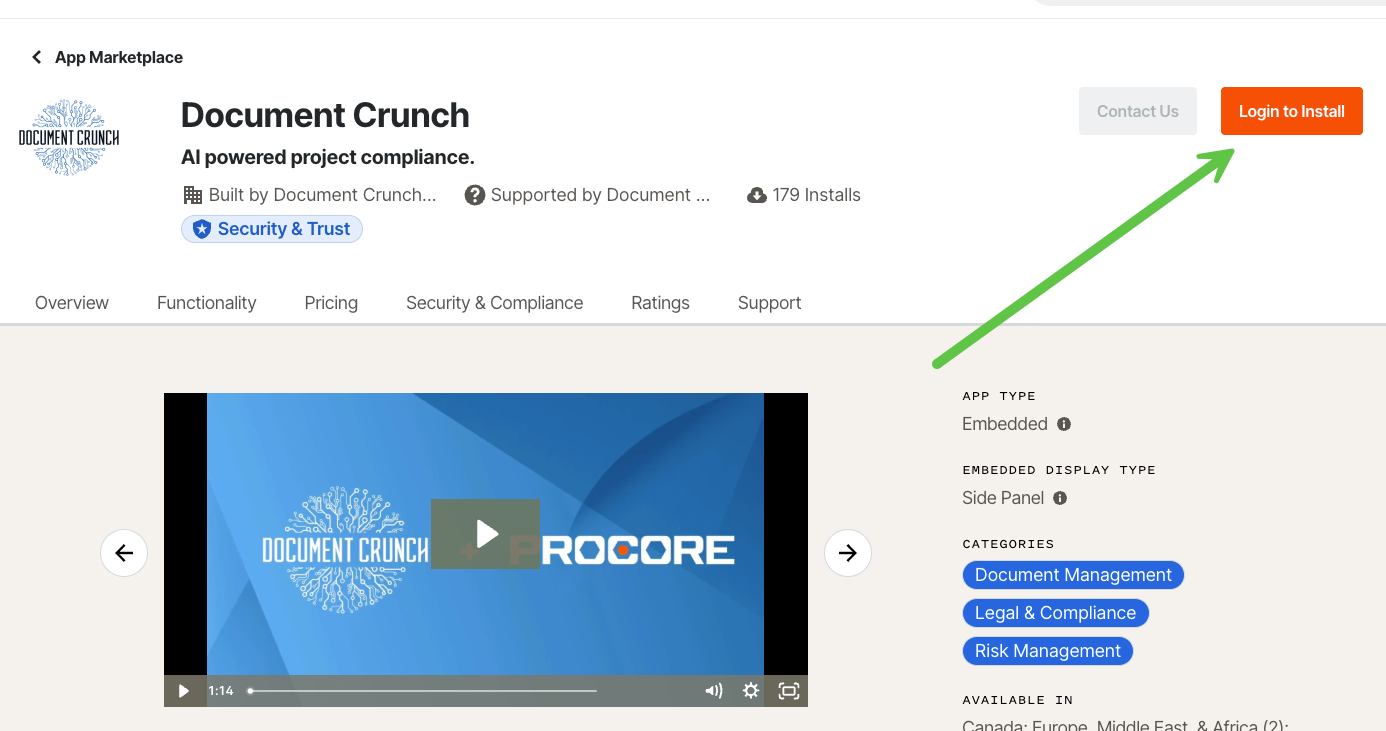
On the next page, click the orange Login to Install button in the upper right-hand corner
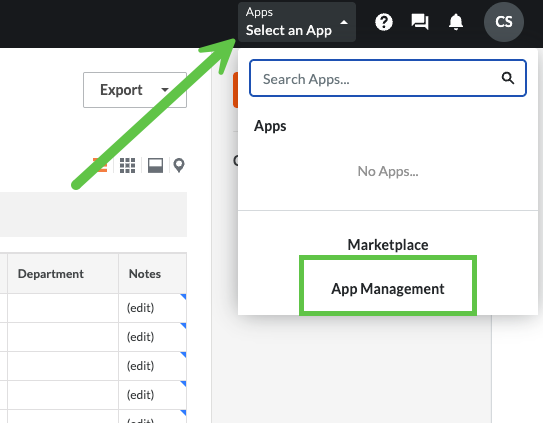
4. Once installed, return to Procore and click on the Apps box again, but this time select App Management
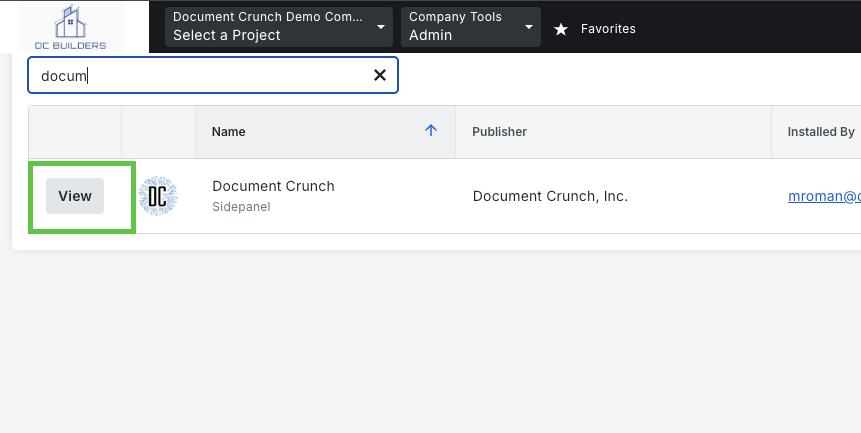
5. Click View next to Document Crunch
6. On the next page, select the Configurations tab and then +Create Configurations
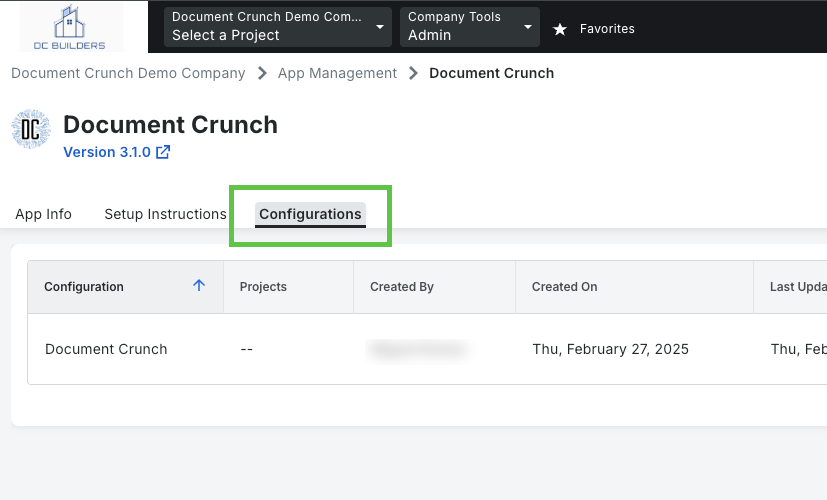
7. Under Projects, select which projects you would like the Document Crunch app to appear in, OR check the Global Projects Config to apply the application to all jobs automatically. Type "Document Crunch" in the Title box. Once those two steps are complete, click the orange Create button.
8. Next, navigate to a project where you would like to access your playbook, and select one of the eleven tools that works with Document Crunch, such as RFIs. Select any RFI or item in another tool to view it, and on the right side you will see the DC logo. Click on that logo, and sign in.
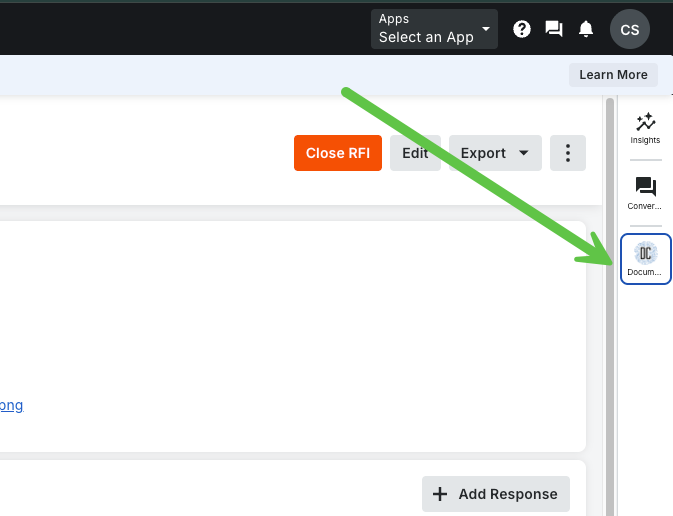
9. Now you should be able to see all of your Playbooks from Document Crunch and be able to connect the one you need to your project!
Note: Once your Playbook is connected, it will be available to all Document Crunch users in your account, as well as anyone who has had the document shared with them.