Commenting and Tagging
Last updated: November 19, 2025
Background
In the construction industry, effective collaboration is critical to risk mitigation and project success. Teams need real-time engagement, clear communication, and structured workflows to ensure nothing is overlooked.
Commenting & Collaboration for Checklists is designed to streamline team discussions, improve accountability, and make contract reviews more efficient. This feature enhances our Checklist functionality by allowing users to engage in dynamic discussions directly within Checklists.
Things to Consider
You will need to have a crunch with at least one checklist applied
Users must be on your team OR have the crunch shared with them
All permission levels have access to this feature
How it Works
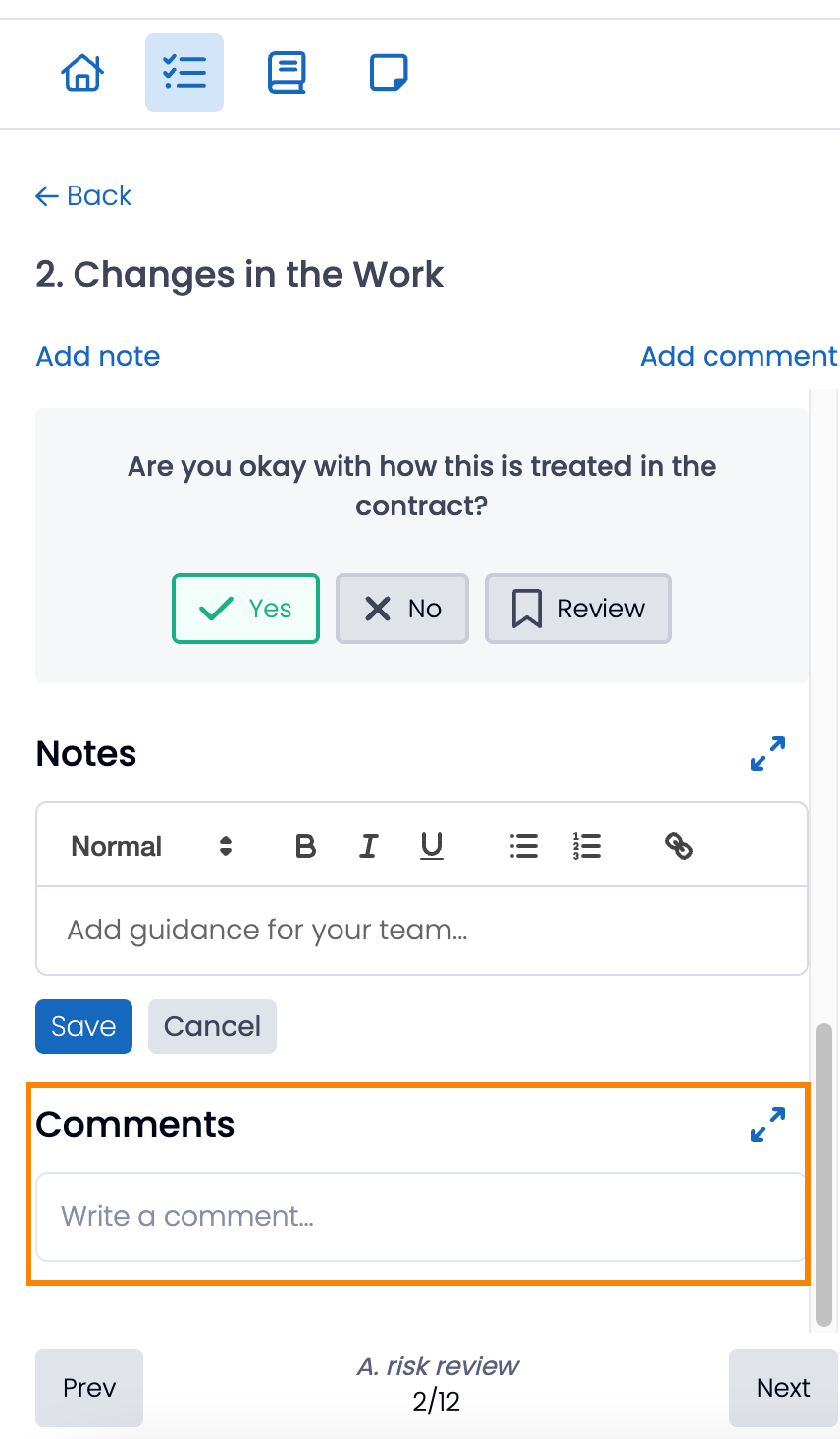
Adding a Comment: Open one of your checklist items, scroll to the bottom, and enter your comment in the provided section. Comments support rich text, emojis, and @mentions to tag team members.
Replying to a Comment: Click “Reply” under an existing comment to engage in a threaded discussion.
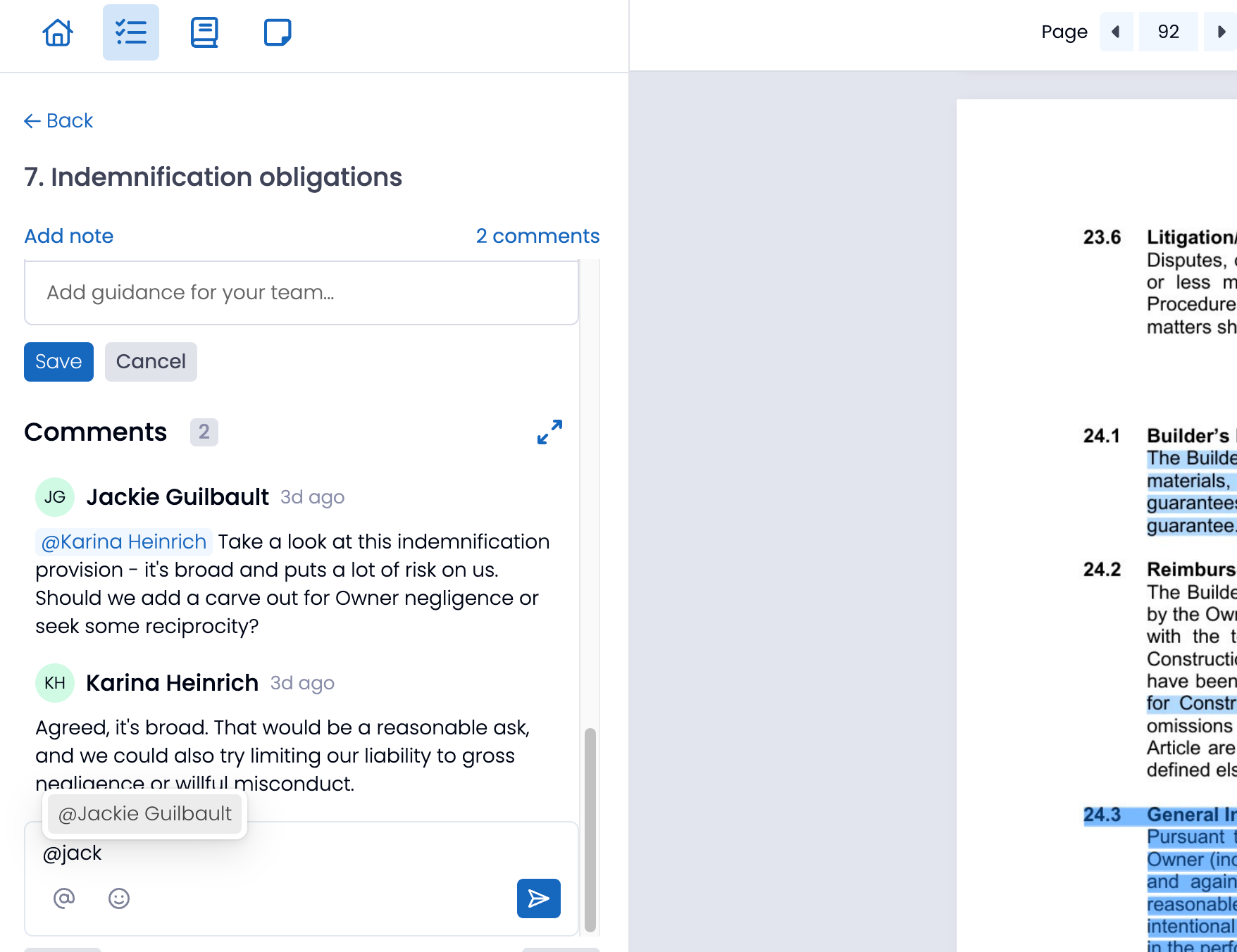
Mentioning Teammates: Type “@” followed by a name to notify specific users. They will receive in-app and email alerts.
Note: If the tagged user views the comment notification in the app within 10 minutes, an email notification will NOT be sent. Additionally, if you direct a comment to yourself, the system will not generate a notification as it will be considered read.
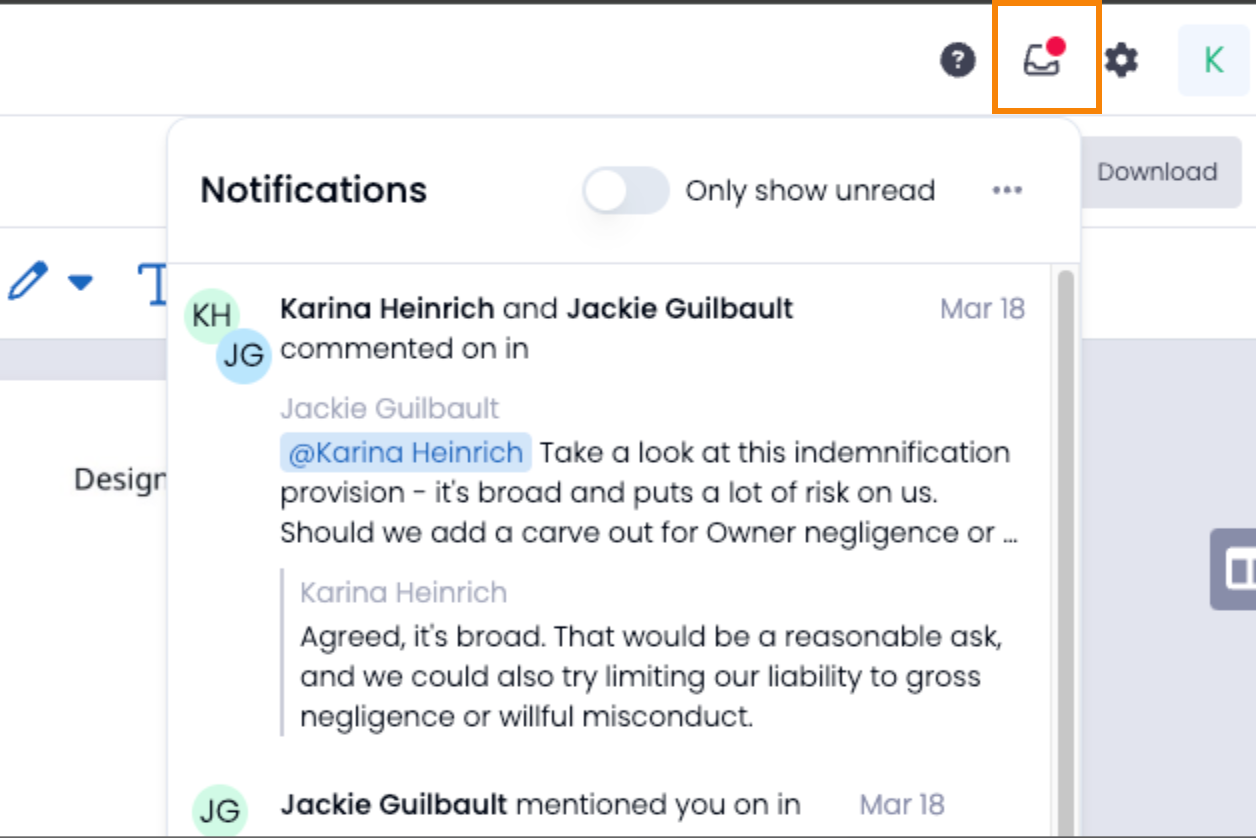
Tracking Comments: View new comments via the Notification Panel, where unread mentions and replies appear.
Navigating via Internal Links: Users can reference related documents or checklist items within their comments.
Managing Notifications: Users are alerted through email when tagged in a comment or when someone replies to their message.
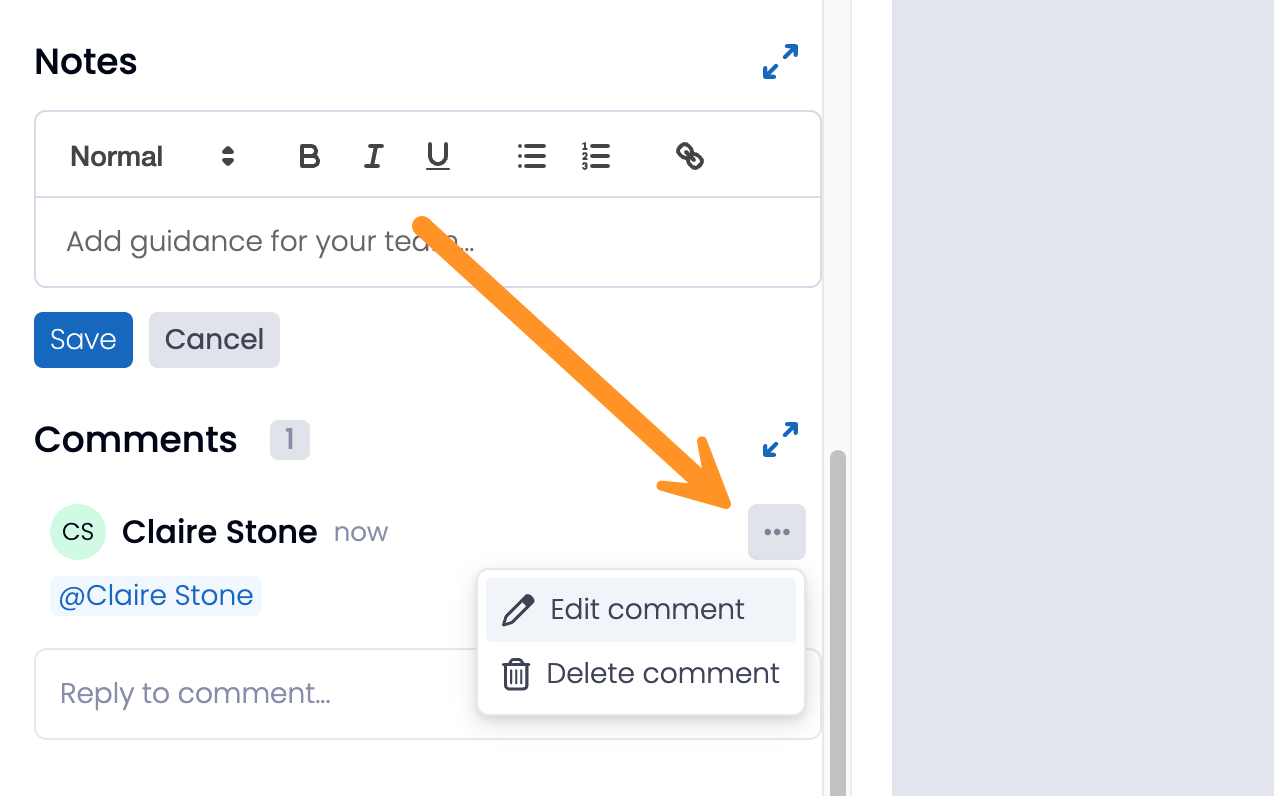
Editing and Deleting Comments: Users can modify or remove their own comments through the three dots next to your comment.
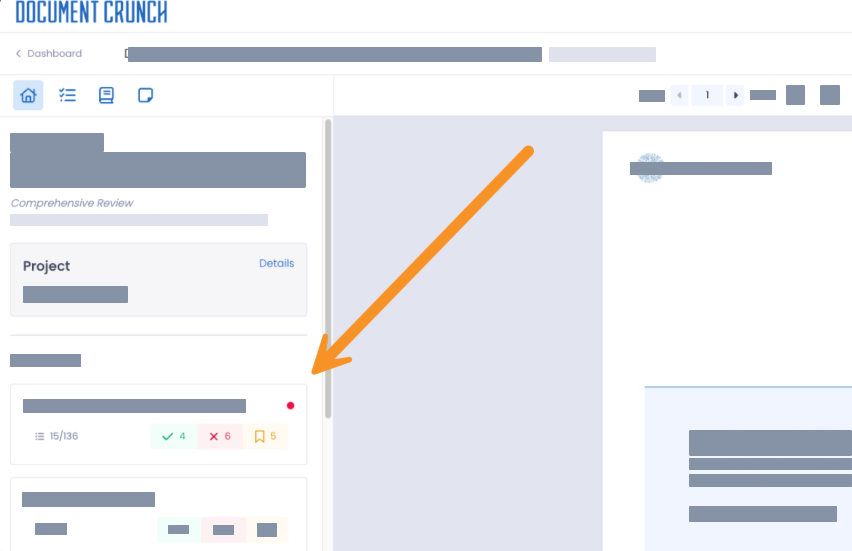
Home Page Indicators: A red dot signals new comments on the home screen checklist widget, ensuring updates are not missed.