Specifications Review
Last updated: October 17, 2025
Background
Specifications Review is an enhanced Document Crunch solution designed to help teams navigate entire specification documents with improved chat and checklist accuracy. This feature represents Document Crunch's expansion beyond traditional contract review into comprehensive project team support.
This update transforms the tool from a narrow legal risk review into a comprehensive specifications navigation solution that serves project teams, precon teams, business development teams (for RFPs), and risk review professionals working with general conditions.
Things to Consider
Crunch Time: Specifications documents take longer to process than typical contracts due to their size and complexity
Chat Response time: Expect 20-30 seconds average for chat responses
Broad questions: Chat questions covering multiple sections (like warranties across all divisions) will take longer to process
Crunch time: Specifications documents take longer to process than typical contracts due to their size and complexity
Multiple volumes: If specifications are already separated into 1,000+ page volumes, process each separately for faster performance
Feature Changes
Key Provisions removed: Previously available key provisions tags have been removed to eliminate confusion, as they were designed for construction contracts
Re-crunching required: Existing specifications must be re-crunched to access the updated experience
Current Limitations
Submittal logs: While you can find required submittals through chat, automatic submittal log creation is not available
Submittal comparison: Automatic comparison of submittals against specifications is not supported; manual review is required
Answer length: Searching for frequently mentioned items (like specific manufacturers) across entire documents may produce very long, difficult-to-read responses
File Format Requirements
Multi-page PDFs required: Single-page PDFs, especially large files (300MB+), will cause OCR scan failures and prevent processing completion
File size limits: Documents must be under 3000 pages OR 500MB - larger files will automatically fail
Supported formats: .pdf, .doc, and .docx files only
Converting single-page PDFs: If you receive single-page PDFs from third parties, use PDF software to split them into multiple pages (e.g., in Adobe Acrobat: Organize Pages > Split)
Steps
Getting Started
Start the Upload Process
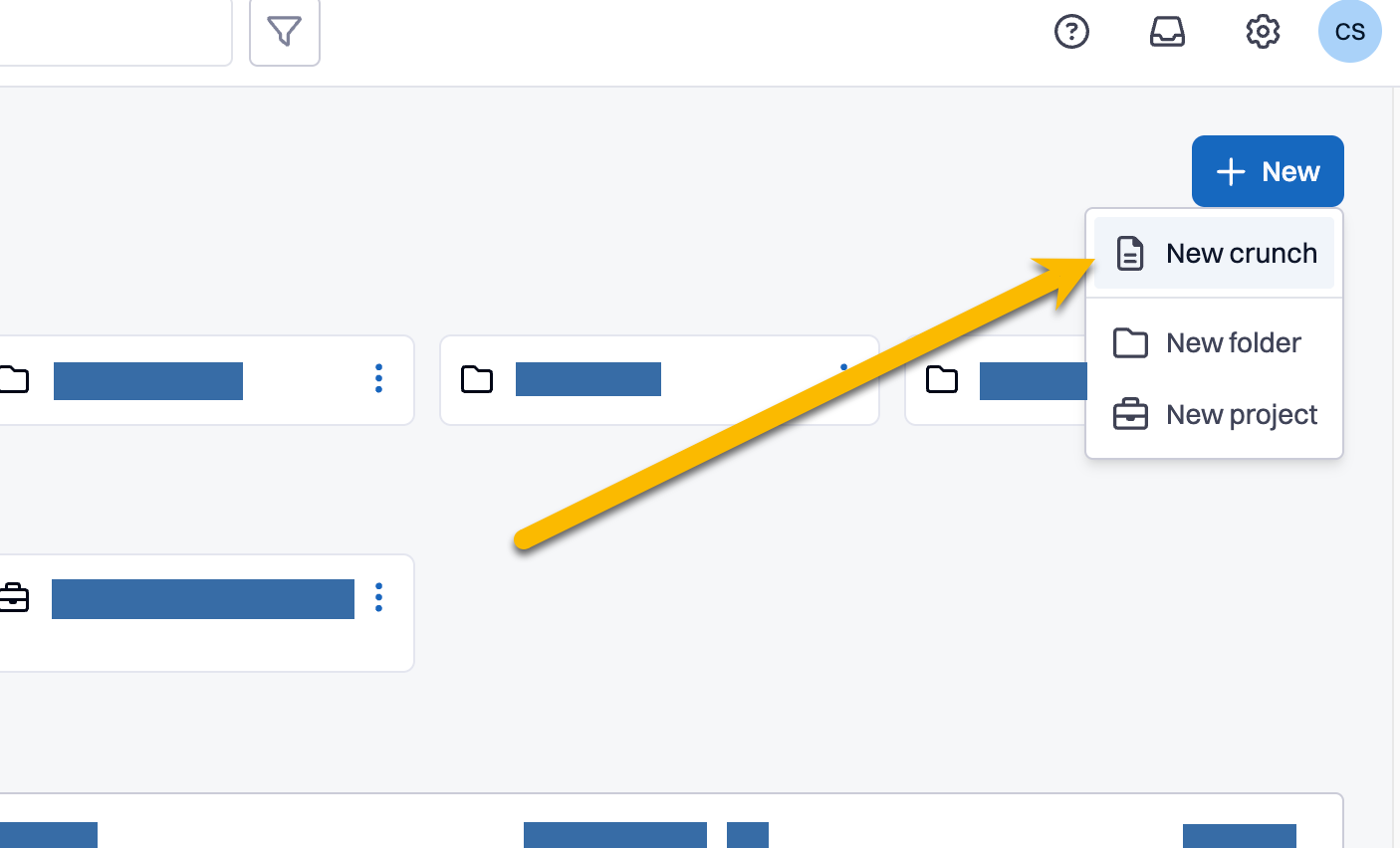
Click the +New button in your dashboard and select New Crunch from the dropdown menu.
Upload Your Document
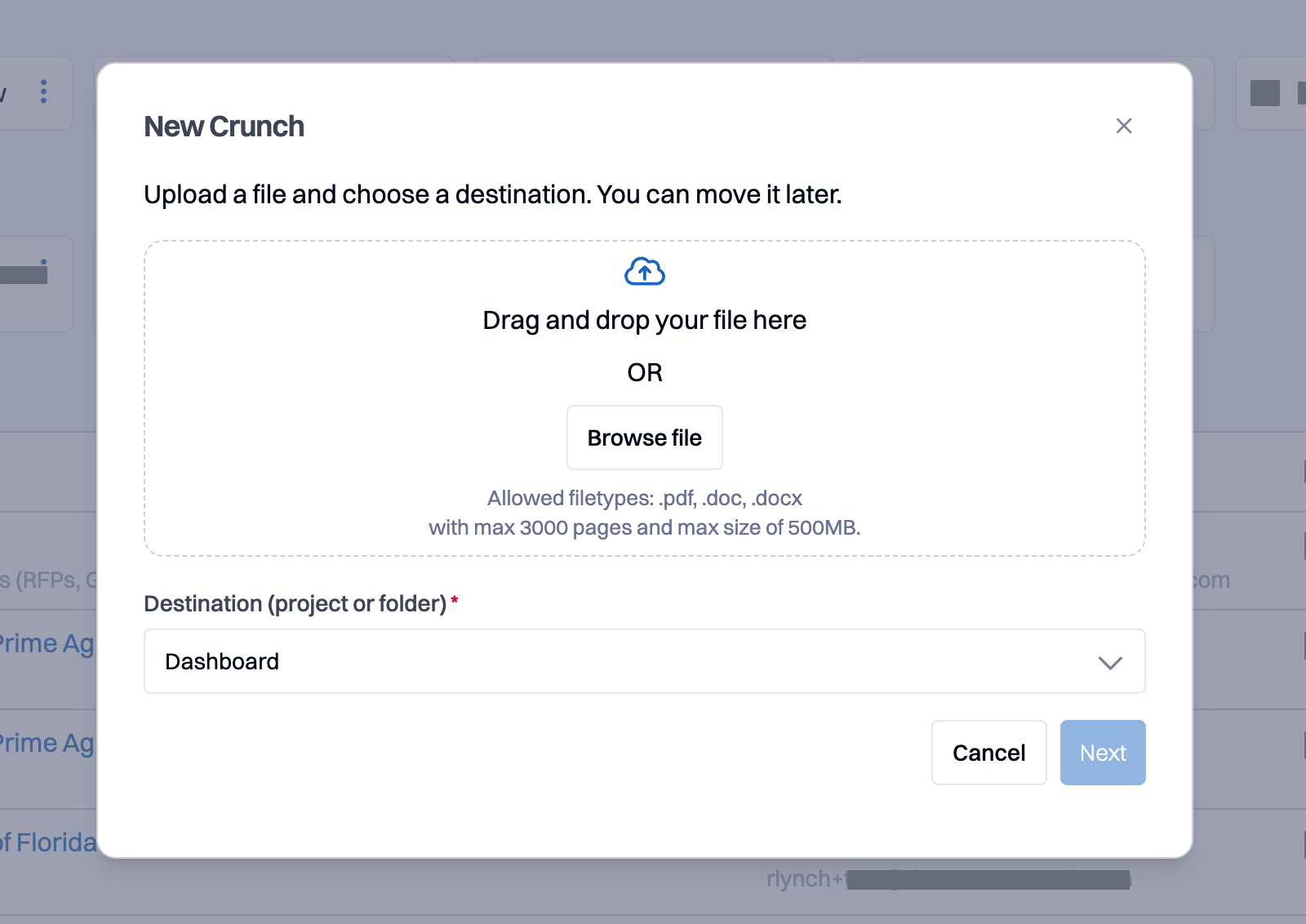
In the upload window, you can either drag and drop your document into the designated area or click browse files to select a document from your computer. The Destination drop down box will display your current location (dashboard, folder, or project) where the document will be saved, or you can select a different location at this stage.
Troubleshooting upload errors: If you encounter processing errors, try clearing your browser cookies and cache, then re-upload the file. Ensure your document meets the file format requirements above.
Note: Larger files will take longer to process!
Select your Document Type
From the Select a document type drop down box, select Specifications
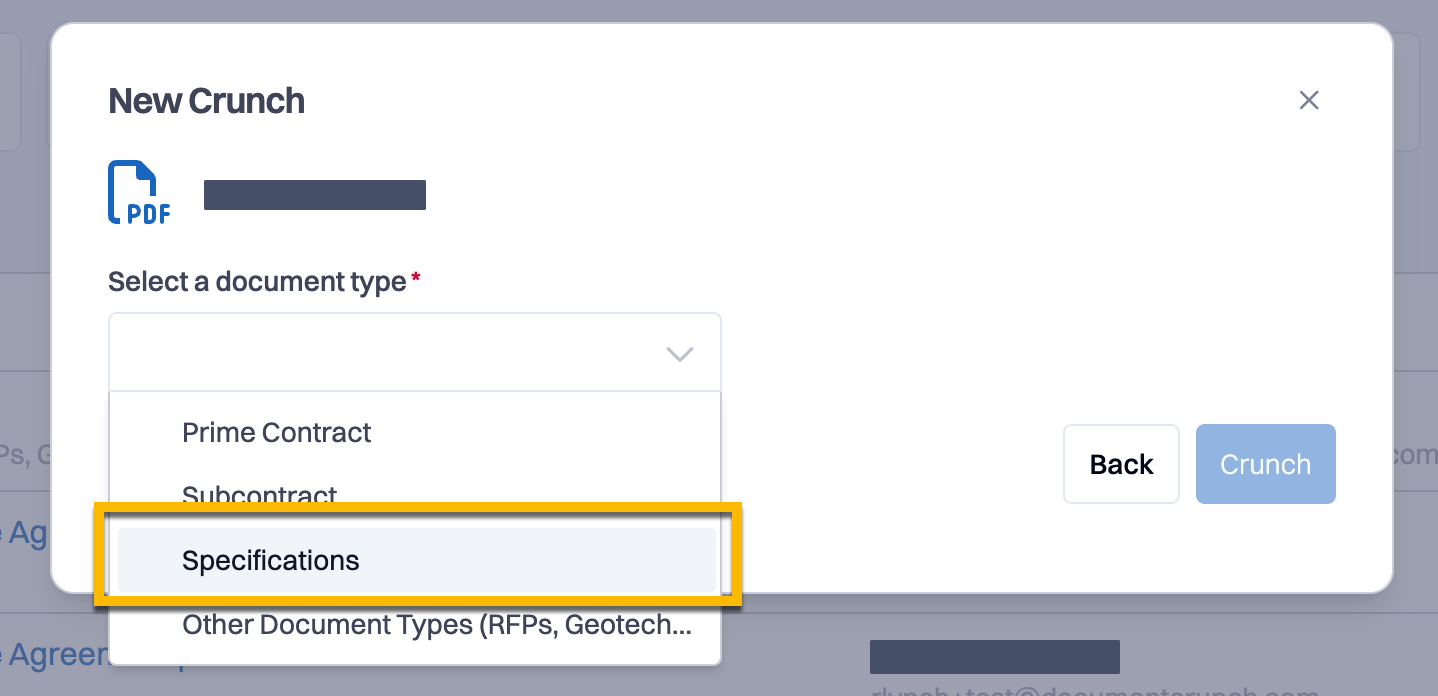
Select your preferred checklist and click Crunch.
You can now review the Checklist questions for your specifications document and/or chat with your document!
Tip! Click the thumbs-down button on your checklist or chat to send us feedback on AI answers
Chatting with your Specs Document
Ask specific questions about your specifications document
Limit scope when possible - for large documents, consider asking about specific divisions or sections rather than the entire document
Use targeted queries for better results:
"What coordination meetings are required for Division 03?"
"What are the warranty requirements for electrical work?"
"What submittals are needed for the HVAC section?"
"What are the field quality control requirements for section 237300?"
"Is delegated design required for storefronts?"
Finding Specific Information
Manufacturer searches: Ask about specific manufacturers, but consider limiting to divisions for more manageable responses
Conflict identification: Ask questions that might have different answers across sections to surface potential conflicts
Meeting requirements: Be specific about meeting types when searching for coordination requirements
Working with RFPs/ITBs that Contain Specs and Contracts
Separate processing recommended: For documents containing both contracts and specifications:
Use Comprehensive Review Crunch for contract-specific workflow
Use Specifications Review Crunch for bid pursuit and precon work