Checklist Filters
Last updated: October 10, 2025
Background
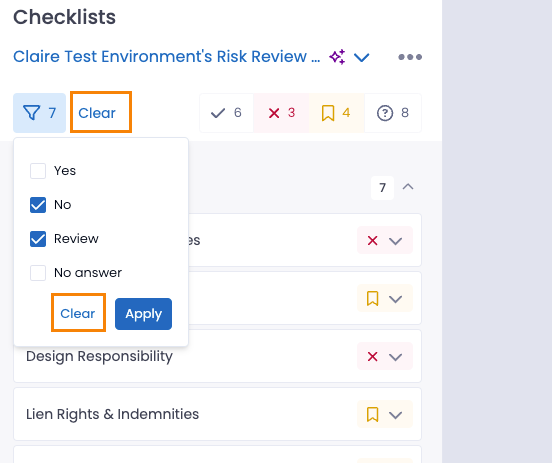
The checklist status filters feature introduces a method for users to streamline their task management by filtering checklist items based on their current status. Improve focus, reduce clutter, and minimize errors by tailoring your view of current tasks according to specific workflow needs.
Things to Consider
You will need to have a crunch with at least one checklist applied
Applying filters to one checklist will NOT impact other checklists
Filters are not sticky, meaning that once you exit the crunch or log out, your filters will reset
All permission levels have access to this feature
Steps
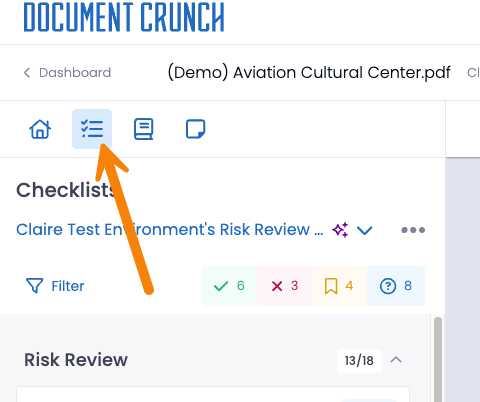
1. Open your document and click on the Checklist tab in your left side panel
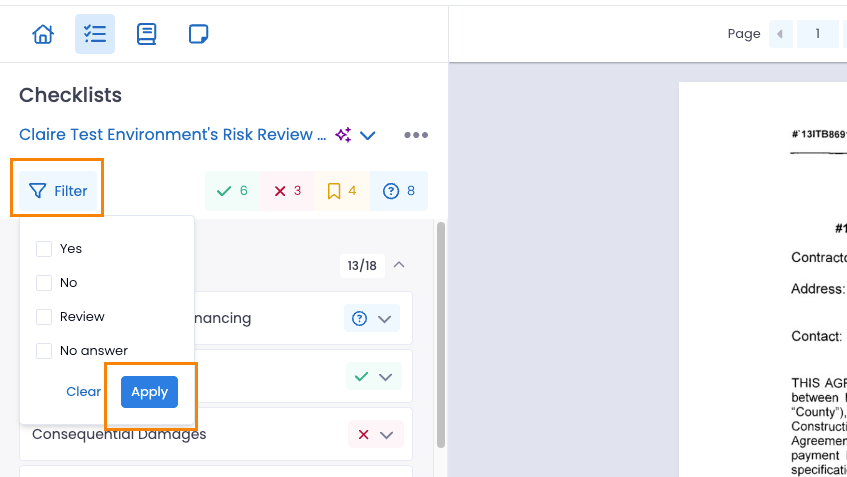
2. Click on the Filter icon and a drop down will open with a checkbox list showing the four filter options. Once you've selected which items you would like to see, click Apply
Note: Depending on which checklist is applied to your crunch, you will see one of the following status list options:
- Standard: Yes, No, Review, No Answer
- Risk: High, Medium, Low, No Answer
- Tier: Tier 1, Tier 2, Tier 3, No Answer
3. To clear the filters, you can either re-open the filter drop down and click Clear, or hit Clear next to the filter icon.