Navigating the Document Crunch Side Panel in Procore
Last updated: February 12, 2026
Background
This is a quick rundown of how to navigate the Document Crunch window from within Procore.
Things to Consider
Ensure you or another Admin have completed the steps in the Procore Integration Setup Guide
You will need to have a crunched Playbook in Document Crunch
Document Crunch operates in the following Procore project tools: Directory, Correspondence, RFI’s, Submittals, Observations, Schedule, Prime Contracts, Budget, Commitments, and Change Events
Understand how to access the side panel in each tool
Steps
When the Document Crunch side panel is open, you will see three icons at the top of the window.
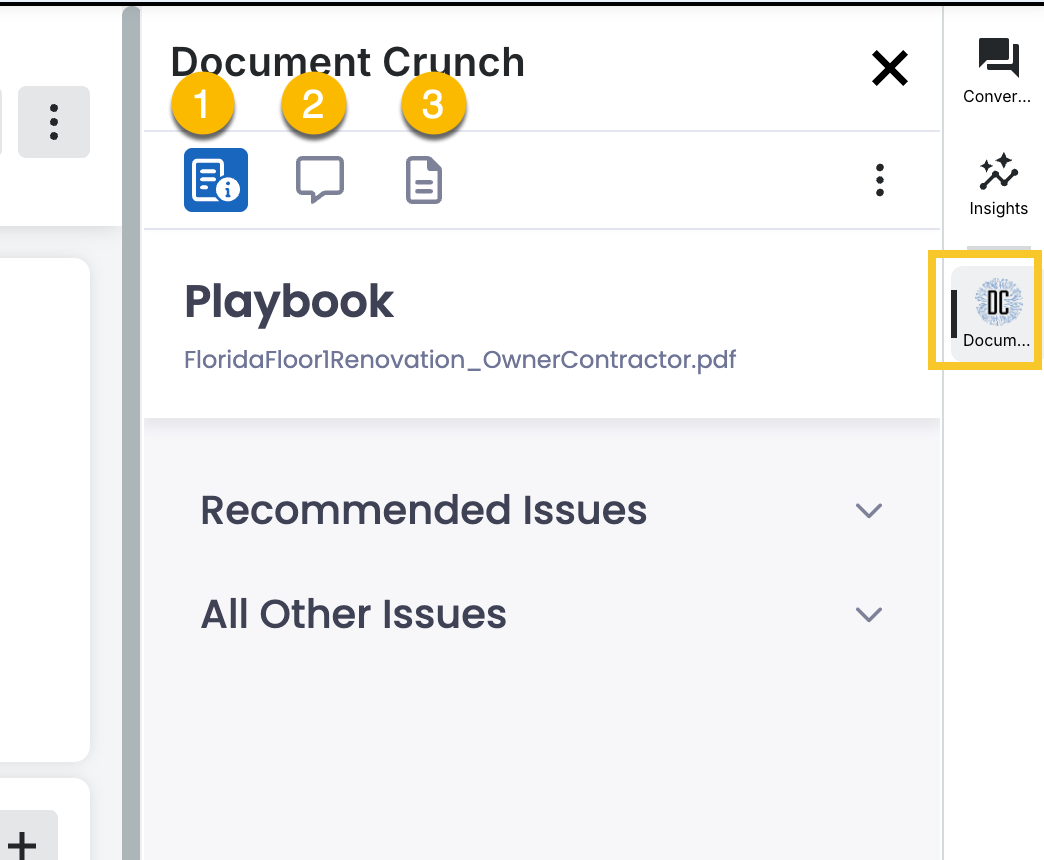
Playbook – provisions your Project Management team will need to know about the contract, automatically providing recommended issues to review based on what tool is opened when looking at the contract in Procore.
Chat – Chat with your contract just like you would in Document Crunch! Each user’s chat is private to them, so there’s no need to worry about it getting too noisy or others viewing your personal prompts.
Tip: Review our Chat Guidance & Best Practices
Notice Builder – quickly create robust, consistent notices that are in the right format, to the right person, at the right time.
Tip: Review how to Generate Notice Letters
Clicking the three vertical dots in the top right-hand corner of your Document Crunch Window will give you a few menu options as well:
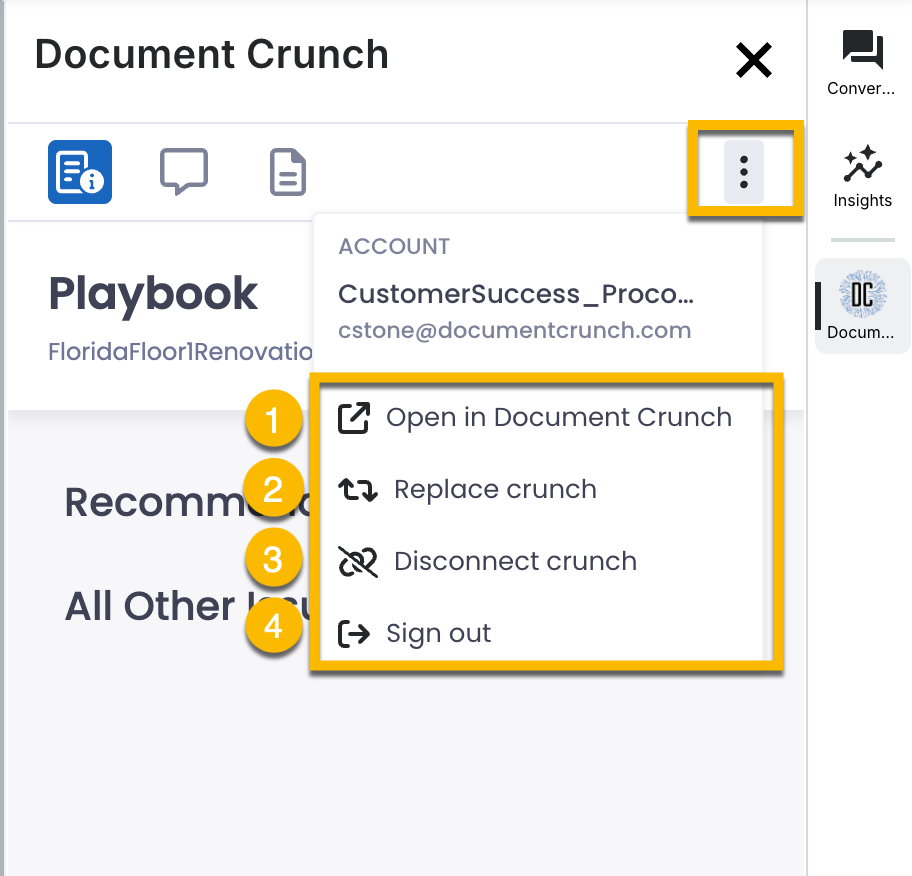
Open in Document Crunch – This will open a new window to view your playbook within Document Crunch
Replace Crunch – If you have more than one playbook uploaded for your project, such as a spec book, you can toggle between documents by selecting this option.
Disconnect Crunch – disconnect your crunch without immediately replacing it with another.
Sign out – log out of Document Crunch while staying logged in to Procore